My Devices
My Devices is a streamlined activation tool designed for distributors and factory staff. Instead of exposing all the low-level service data, it provides a focused interface for quickly activating or reactivating OVES devices with different code types.
Scanning & Connection
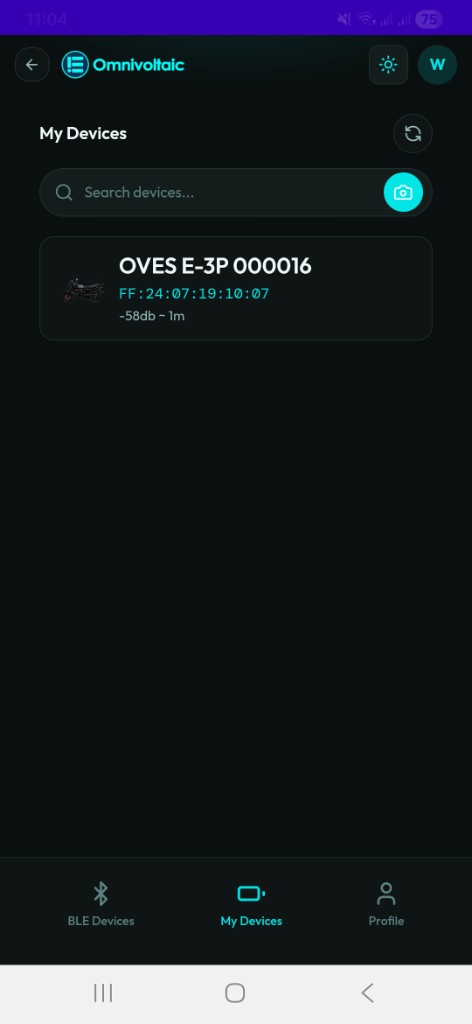
My Devices uses the same Bluetooth scanning and connection flow as BLE Devices. When you open the page, your phone scans for nearby OVES devices and lists them with:
- Device name
- Product image
- Signal strength (RSSI)
- MAC address
Connecting to a Device
| Method | Description |
|---|---|
| Tap | Tap a device card in the list to connect |
| Search | Type in the search bar to filter by device name |
| Camera / QR Scan | Tap the camera icon next to the search bar to connect by QR code |
Once connected, the app takes you to the activation screen.
Activation Screen
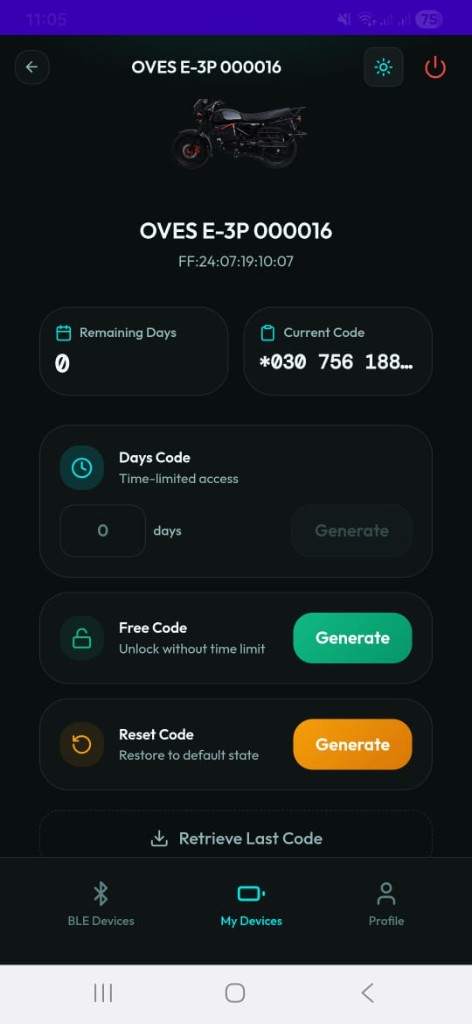
Device Summary (Top)
| Field | Description |
|---|---|
| Device image | Product photo |
| Device name | e.g. OVES E-3P 000016 |
| MAC address | Bluetooth hardware address |
| Remaining Days | Days of active service remaining on the device |
| Current Code | The most recently written activation code |
Code Types
Three types of activation codes can be generated from this screen:
Days Code — Time-limited access
Enter the number of days to activate, then tap Generate.
- The app requests a time-limited code from the server.
- The code is automatically written to the device over Bluetooth.
- Use this for standard PAYG activations with a specific duration.
Free Code — Permanent unlock
Tap Generate next to Free Code.
A Free Code is a unique 21-digit PAYG code used to permanently unlock a product.
- Generated at the end of a customer's payment plan to mark the completion of the PAYG process.
- Grants the customer full ownership of the product — no further activation codes are ever needed.
- Once a Free Code is written, the device is unlocked indefinitely.
Reset Code — Erase active credit
Tap Generate next to Reset Code.
A Reset Code is a unique 21-digit PAYG code used to erase any active credit on a product.
Use it when:
- Correcting a code entered by mistake — wipe the incorrect credit before issuing the right code.
- Resetting remaining credit days — clear any leftover days on the device.
- Repossessing a product that still has active days, so it can be resold or reassigned with a fresh PAYG setup.
Retrieve Last Code
Tap Retrieve Last Code at the bottom of the screen.
| What it does | Fetches the most recently generated code for this device from the server |
| Then | Automatically re-writes it to the device over Bluetooth |
| When to use | A previous write was interrupted, the code didn't take effect, or you need to re-apply without generating a new one |
Tip
Use Retrieve Last Code if a Bluetooth disconnection or app interruption prevented the previous code from being written successfully.
My Devices vs BLE Devices
| Feature | My Devices | BLE Devices |
|---|---|---|
| Audience | Distributors / Factory Staff | Distributors / Technical Staff |
| Connection flow | Same (scan, tap, camera/QR) | Same |
| After connection | Focused activation screen | Full 6-tab diagnostic view |
| Days Code | Yes | No (manual write via CMD tab) |
| Free Code | Yes | No |
| Reset Code | Yes | No |
| Retrieve Last Code | Yes | No |
| Read all service tabs | No | Yes (ATT, CMD, STS, DTA, DIA, HB) |
| MQTT heartbeat | No | Yes (HB tab) |