Rider App
The Rider App is the customer-facing part of OvApp, designed for riders who use OVES battery swap services. It provides a self-service dashboard for managing their subscription, finding swap stations, and tracking activity.
Authentication & Login
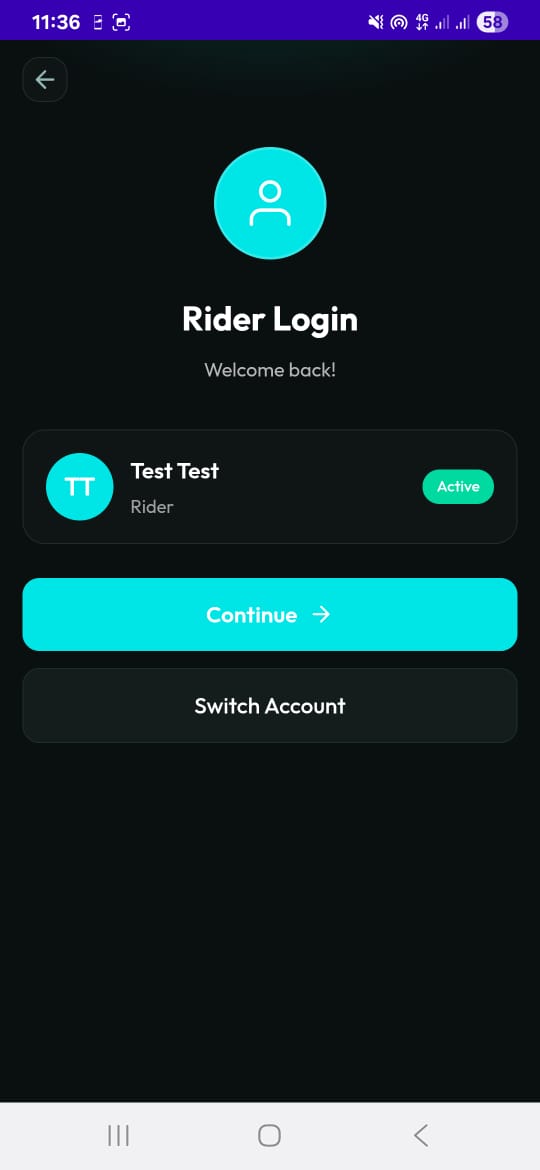
When a rider opens the app, it first checks if they have saved credentials:
- Returning rider — the app shows a "Welcome Back" screen with their name and profile, offering two options:
- Continue — logs them in and begins prefetching data in the background for a faster experience
- Switch Account — clears credentials and shows the login form
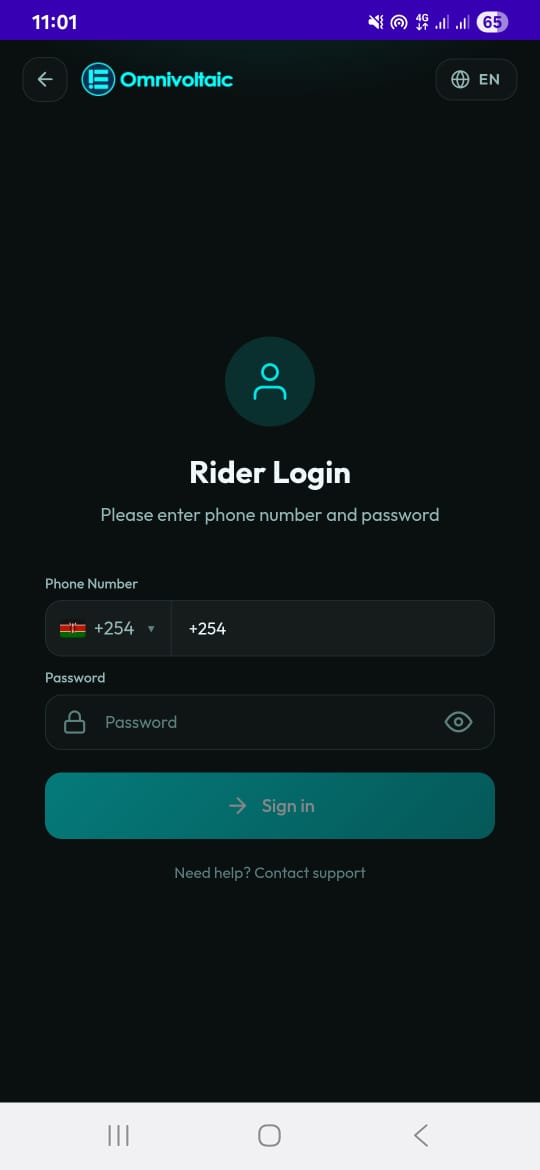
- New session — the rider sees a login screen where they sign in using their phone number and password
Note
Riders cannot register themselves directly on this screen. They can only log in with credentials provided to them.
Home Screen
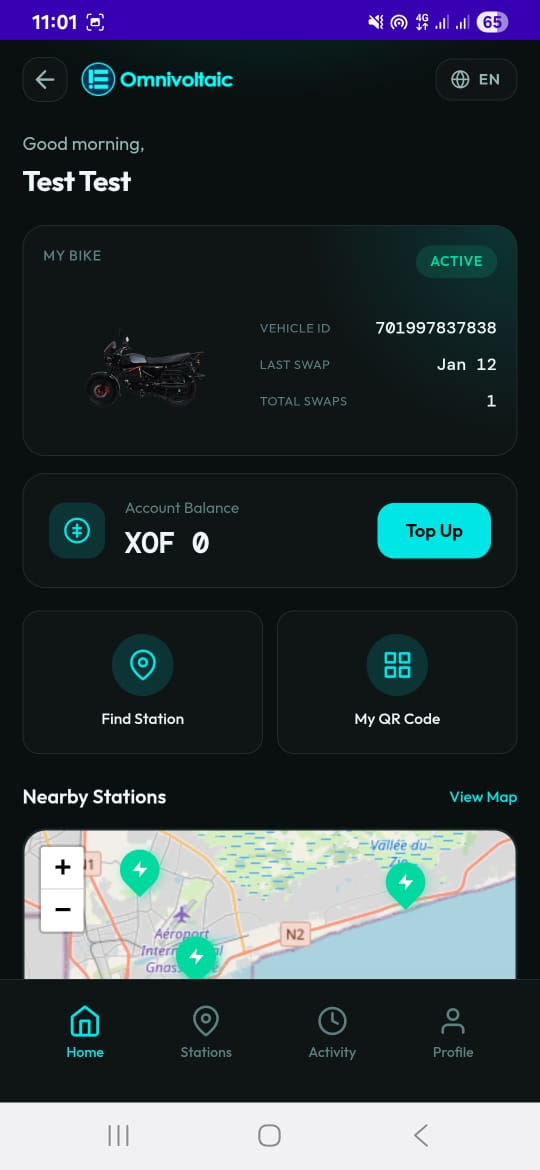
Once logged in, the rider lands on the Home screen, which has four main sections:
My Bike Card
Shows the rider's vehicle and subscription information:
| Field | Description |
|---|---|
| Vehicle ID | The rider's assigned vehicle |
| Payment status | Active, Renewal Due, Overdue, etc. |
| Total swaps | Number of battery swaps completed |
| Last swap | When the most recent swap occurred |
This data is fetched by calling the identifyCustomer GraphQL mutation using their subscription code, which returns service plan data including assigned vehicle, swap count, energy usage, and payment state.
Account Balance Card
Displays the rider's account balance in their billing currency (e.g. XOF).
- Balance is calculated from energy service data: remaining energy (quota minus used) multiplied by the unit price
- A Top Up button allows the rider to add funds
Quick Actions
| Button | Action |
|---|---|
| Find Station | Navigates to the Stations map view |
| My QR Code | Opens a modal showing a QR code generated from their subscription code (attendants scan this during swaps) |
Nearby Stations Map
An interactive Leaflet/OpenStreetMap showing nearby swap stations as markers.
Station discovery process:
- The app publishes an MQTT request to get the fleet IDs associated with the rider's subscription plan.
- It queries a GraphQL endpoint (
getFleetAvatarsSummary) with those fleet IDs to get station locations and battery availability.
Each station displays:
- Station name
- Distance from the rider (calculated using the Haversine formula with GPS)
- Number of fully charged batteries available
Interactions:
- Tapping a station zooms the map
- Tapping the navigation arrow draws a route line from the rider's location to the station
Stations Screen
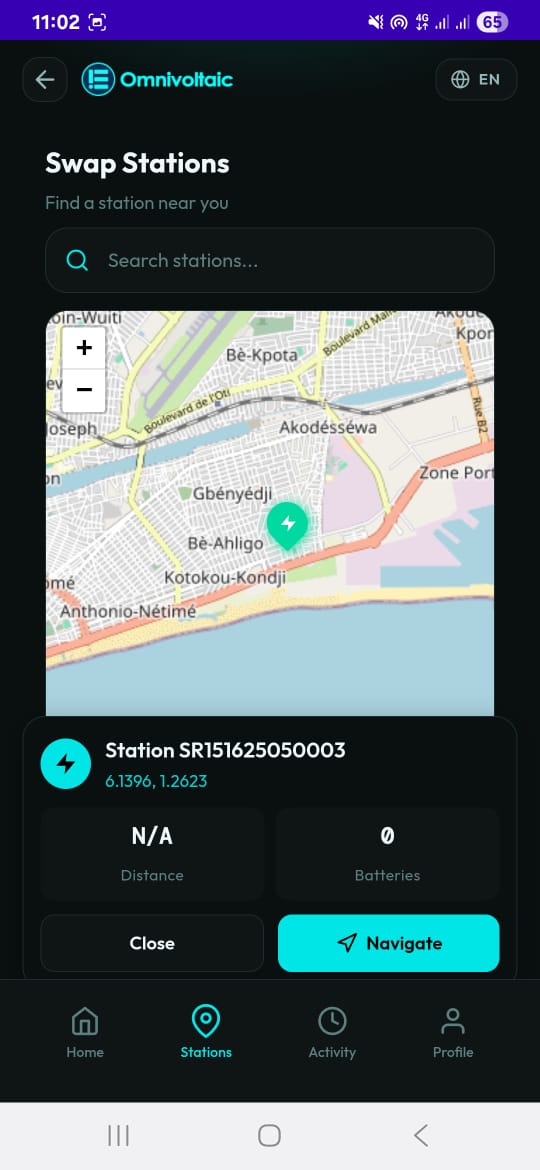
A full-screen map view with all swap stations.
Features
- Search bar to filter stations by name
- Station list below the map with cards for each station
- Each station card shows:
| Field | Description |
|---|---|
| Name | Station name |
| Coordinates | Station location |
| Distance | Distance from the rider's current position |
| Available batteries | Count of batteries at 100% charge only |
Interactions
- Tapping a station highlights it on the map
- The Navigate button draws a route from the rider's current location to the selected station
- Requires location permission — displays a fallback or prompt if GPS is disabled
- Updates dynamically with location changes
Activity Screen
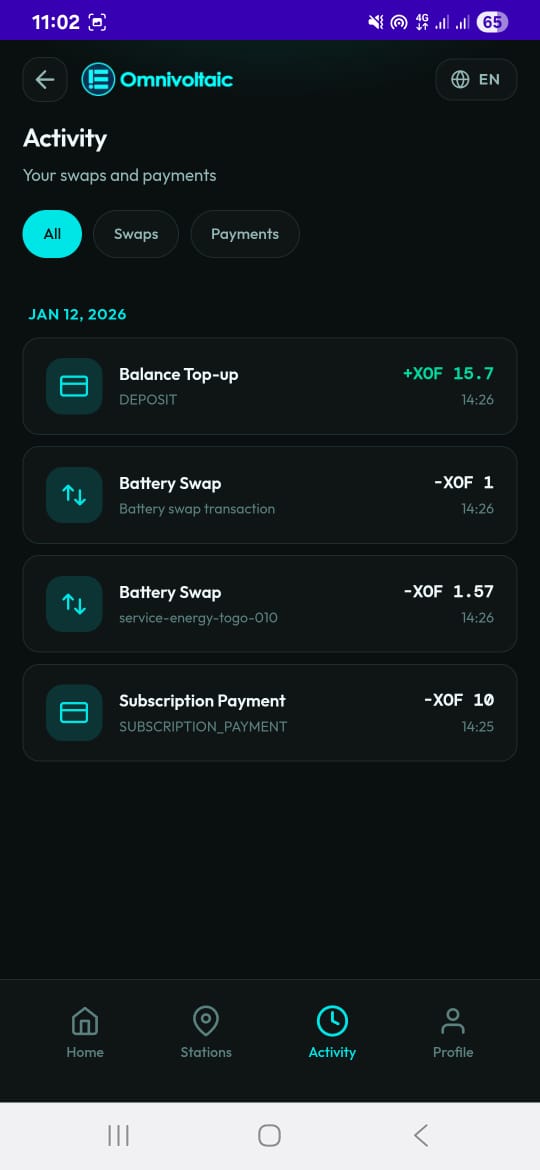
A transaction history showing all swaps and payments, grouped by date (Today, Yesterday, or specific dates).
Data Source
Activities are fetched from the servicePlanActions GraphQL endpoint, which returns both:
- Payment actions — top-ups, subscription payments
- Service actions — battery swaps, electricity usage
Display
Each entry shows:
- Type icon — swap arrows, currency symbol, etc.
- Title — description of the action
- Amount — value of the transaction
- Timestamp — when it occurred
Filter Tabs
- All — shows everything
- Swaps — battery swap history only
- Payments — payment and top-up history only
Empty State
Displays "No activities found" when no records exist.
Profile Screen
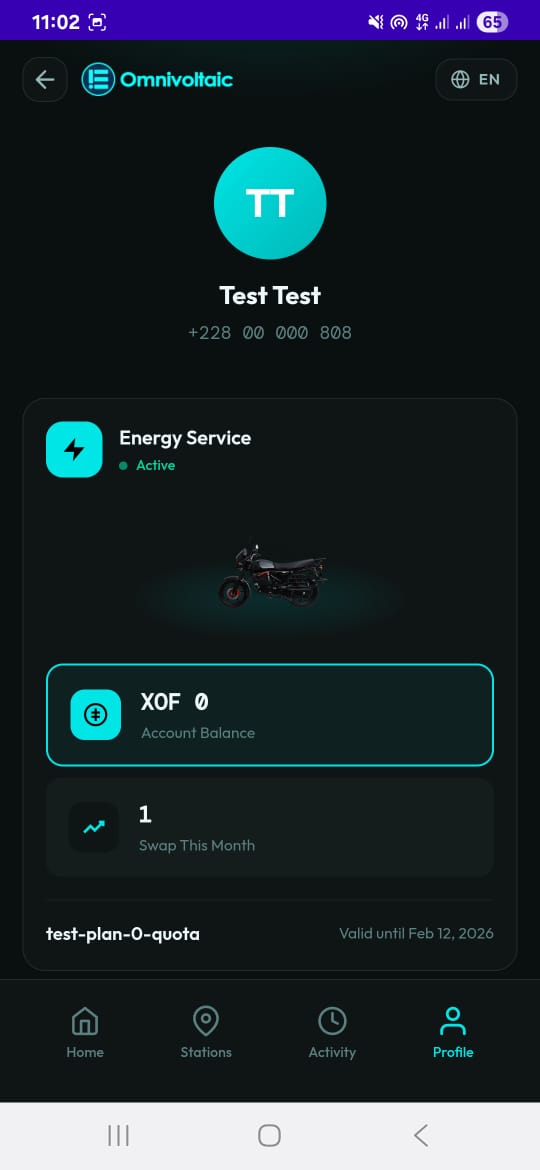
Shows the rider's personal information and account settings.
Displayed Information
- Rider avatar and full name
- Phone number
- Account balance
- Total swaps
- Subscription plan name and validity date
- Vehicle information
- Payment status
Menu Items
| Item | Description |
|---|---|
| Account Details | View personal information; change password via the Odoo API |
| My Vehicle | Vehicle identity and registration details |
| Subscription Plan | View and manage plan and billing |
| Payment Methods | Linked payment options |
| Help & Support | FAQs and contact support / tickets page |
| Logout | Sign out of the rider session |
Top-Up Modal
A multi-step flow for adding funds to the rider's account:
- Select amount — choose a preset amount or enter a custom one
- Choose payment method — choose payment method
- Enter transaction ID — provide the payment reference
- Confirm — submit the top-up
On success:
- The balance updates immediately
- A new activity entry appears in their history
Account Details Modal
Allows the rider to change their password:
- Enter current password
- Enter new password
- Confirm
After a successful change, the app logs the rider out so they can sign in with the new credentials.
Bottom Navigation
A persistent bottom nav bar with four tabs for quick switching between screens:
| Tab | Screen |
|---|---|
| Home | Dashboard with bike card, balance, quick actions, and nearby stations |
| Stations | Full-screen map with all swap stations |
| Activity | Transaction history with filters |
| Profile | Personal info, settings, and account management |
Data Flow Summary
On login, the app fires multiple API calls in parallel for speed:
| API Call | Data Returned |
|---|---|
| Odoo dashboard API | Payment summary |
| Subscriptions API | Active subscription details |
identifyCustomer GraphQL mutation |
Vehicle, swap count, energy balance |
servicePlanActions GraphQL query |
Activity history |
MQTT request + getFleetAvatarsSummary GraphQL query |
Station locations and battery availability |
Each call updates its own part of the UI independently, so the rider sees data appear progressively rather than waiting for everything to load.