Orders
The Orders applet manages sales quotations and orders through a 6-step pipeline — from creating a quotation through to delivery, payment, and final invoice.
Access
| Login required | Yes — Sales Service Account (SA) |
| Applet slug | orders |
Order List
The main screen lists all quotations and orders for the active SA.
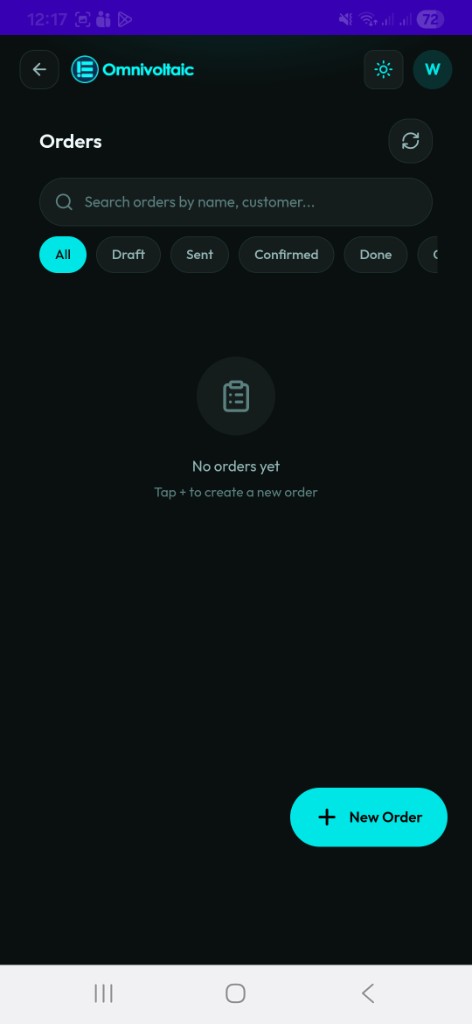
Searching & Filtering
| Control | Description |
|---|---|
| Search bar | Search by order name or customer |
| All | Show all orders regardless of state |
| Draft | Quotations not yet sent |
| Sent | Quotations sent to the customer |
| Confirmed | Confirmed sales orders |
| Done | Fully completed orders |
| Cancelled | Cancelled orders |
Results are paginated — 20 orders per page.
Order Cards
Each card displays the order name, customer and contact person, total value, payment status badge (Unpaid / Partial / Paid), order date, and state badge. Tap a card to open the order pipeline view.
Creating a Quotation
Tap + New Order on the list screen to start a new quotation.
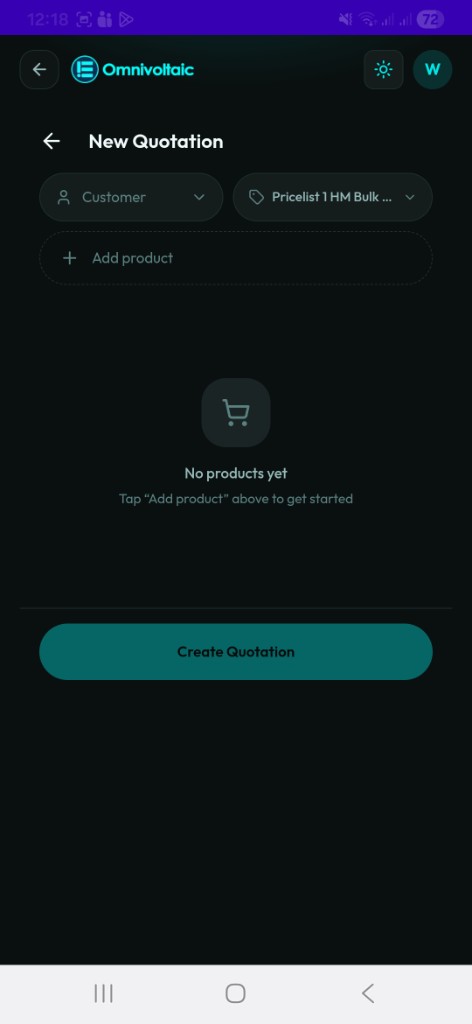
| Step | Action |
|---|---|
| 1. Customer | Search and select the customer. The customer must already exist — create them in the Customers applet first if needed. |
| 2. Price list | Choose the applicable price list. Changing it automatically re-prices all lines. |
| 3. Add products | Search the Odoo catalogue and add lines. Out-of-stock products are blocked; over-ordering triggers a warning. |
| 4. Submit | Tap Create Quotation — the order is created in Odoo and opens immediately in the pipeline view. |
Order Pipeline
Each order moves through 6 steps. The current step is highlighted in the progress bar at the top of the detail screen.
Step 1 — Quotation
Customer details and order lines are shown in read-only mode.
| Action | Description |
|---|---|
| Send | Sends the quotation to the customer and advances to Step 2 |
Step 2 — Revise & Confirm
Review and edit the quotation before confirming.
| Action | Description |
|---|---|
| Change price list | All lines are re-priced automatically |
| Adjust / remove lines | Update quantities or remove products |
| Confirm | Confirms the order and moves to Step 3 |
| Request Approval | Routes the order for manager approval |
Note
If the quotation was previously rejected, a rejection banner is shown with the reason.
Step 3 — Approval
The order is pending manager review.
| Action | Description |
|---|---|
| Approve | Approves the order and moves it to Step 4 |
| Reject | Rejects the order with an optional note |
| Download Proforma | Generates a proforma PDF |
| Email Proforma | Sends the proforma PDF to the customer |
Step 4 — Delivery
Manage fulfilment for the confirmed order.
| Action | Description |
|---|---|
| View deliveries | See all linked delivery records and line details |
| Validate Delivery | Confirms goods have been dispatched (available when delivery state allows) |
Step 5 — Payment
Register payment against the order.
| Action | Description |
|---|---|
| View summary | See order lines, total, and payment history |
| Register Payment | Enter the payment amount and memo, then confirm |
Note
The next step is only unlocked once the order is fully paid.
Step 6 — Final Invoice
The order is complete.
| Action | Description |
|---|---|
| View invoice | Review the final invoice and paid summary |
| Download PDF | Download the invoice as a PDF |
| Done | Return to the order list |
Order Summary Card
At the top of every order detail screen, a summary card shows:
| Field | Description |
|---|---|
| Partner | Customer name |
| Total | Full order value |
| Paid | Amount received so far |
| Remaining | Balance still due |
| Delivery badge | Shown once the order is confirmed or done |
Timeline
If the order has activity events (status changes, approvals, notes), a timeline block is shown below the step content.